By SMS, from their phone
You send them the link by SMS and they sign from home, with the same process. As the link already reaches their phone, they do not need a code. It works for any acceptance: quotes, terms, authorisations, bookings.
Your customer checks their details, reads, ticks “I have read and understood” and signs with their finger. You keep a PDF receipt of every signature —exactly which text they accepted, when, with which details and their signature— and, if you wish, they get it by SMS. For clinics, opticians, garages, estate agencies or any business that needs its customer to read and accept something, with no paper and no scanner.
Any tablet or iPad with a browser. There is no app to install.
In Signatures you enter their mobile number, their name and, if you like, their details (ID, address…), and choose the document: your consent form, your terms, a quote. You prepare it once in Pages and reuse it every time.
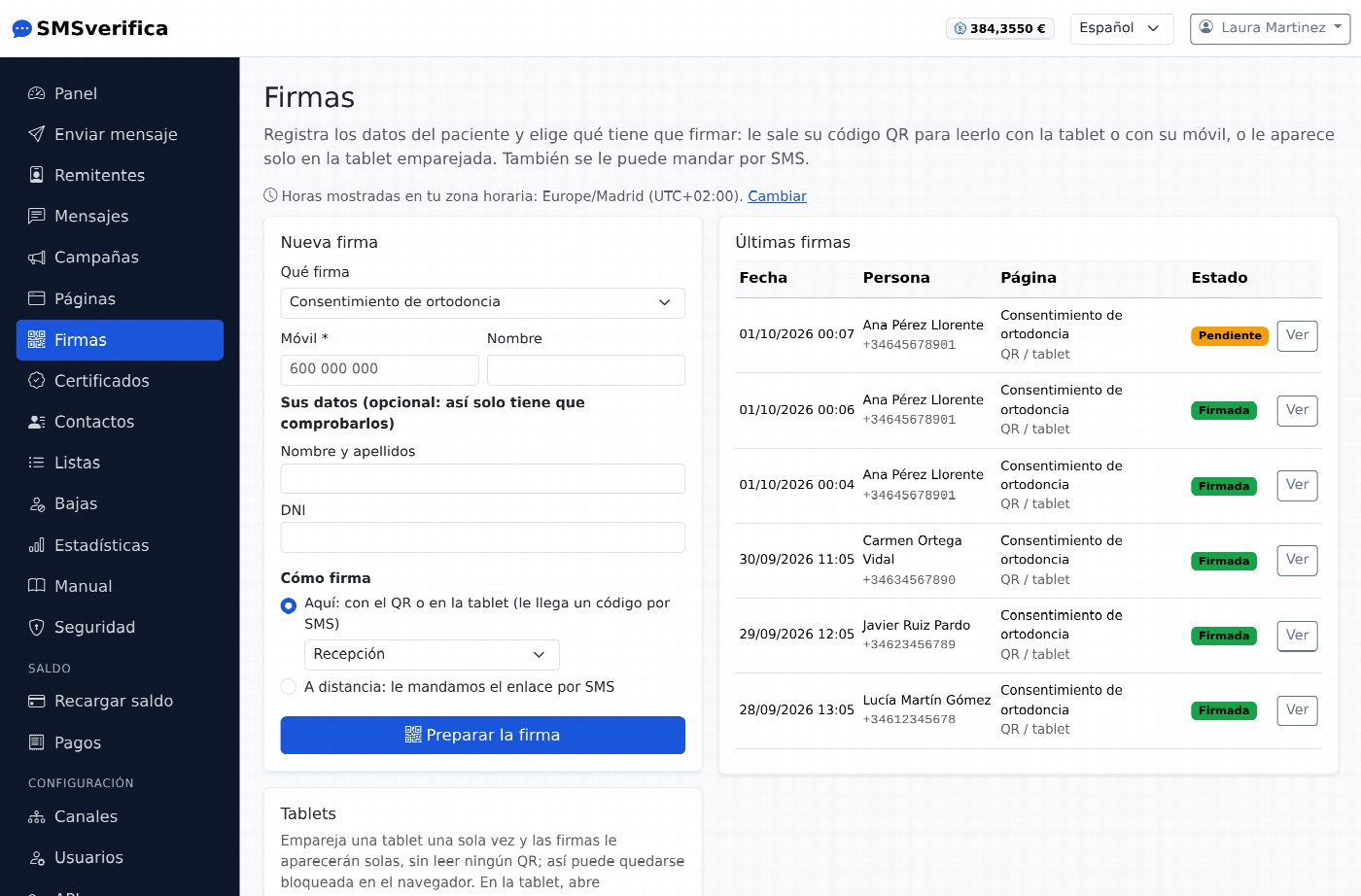
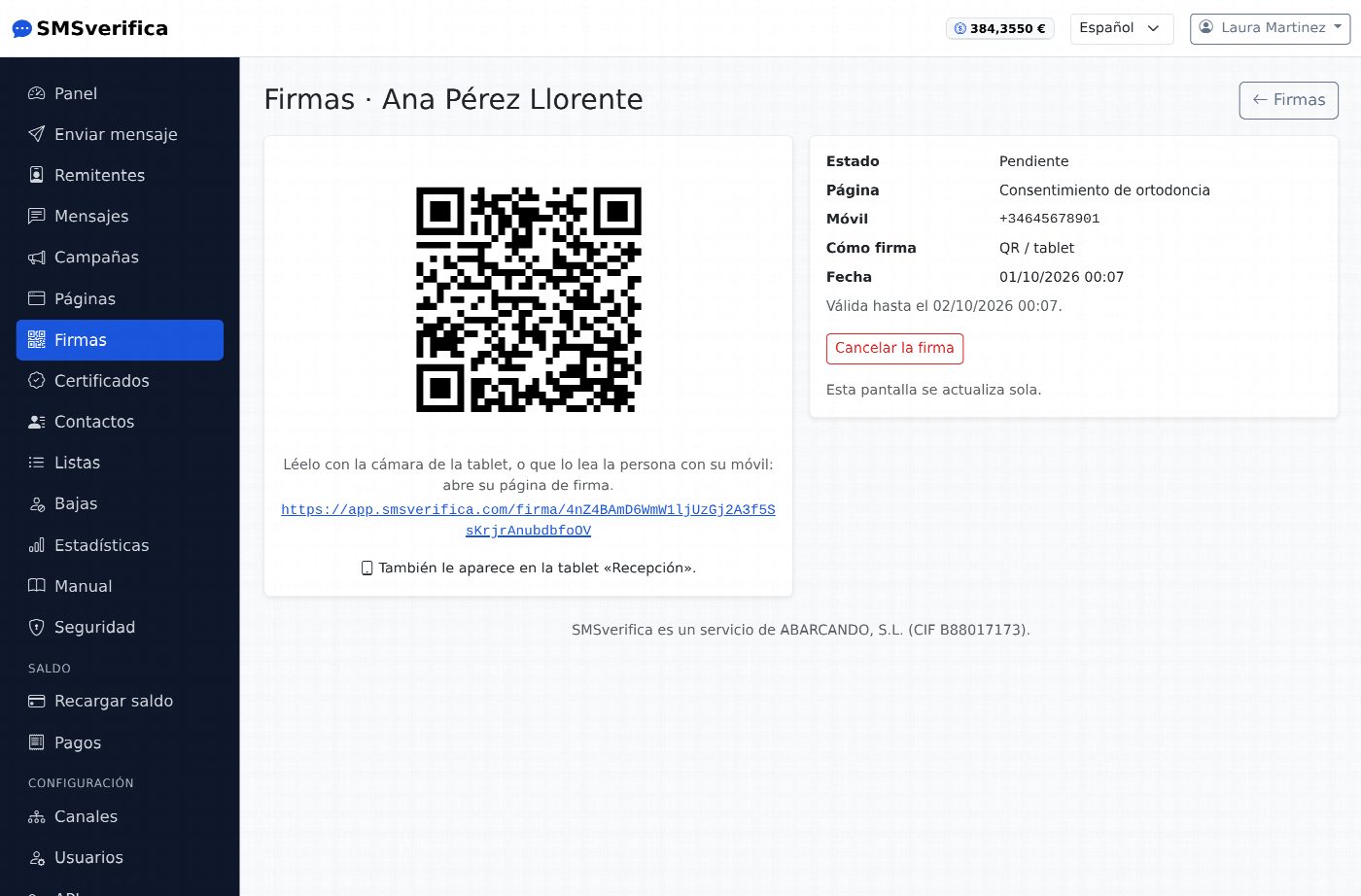
Their QR code appears: the tablet reads it (or the customer does with their own phone) and their signing page opens. If you pair the tablet just once, signatures appear on it by themselves, without reading anything, and it can stay locked in the browser.
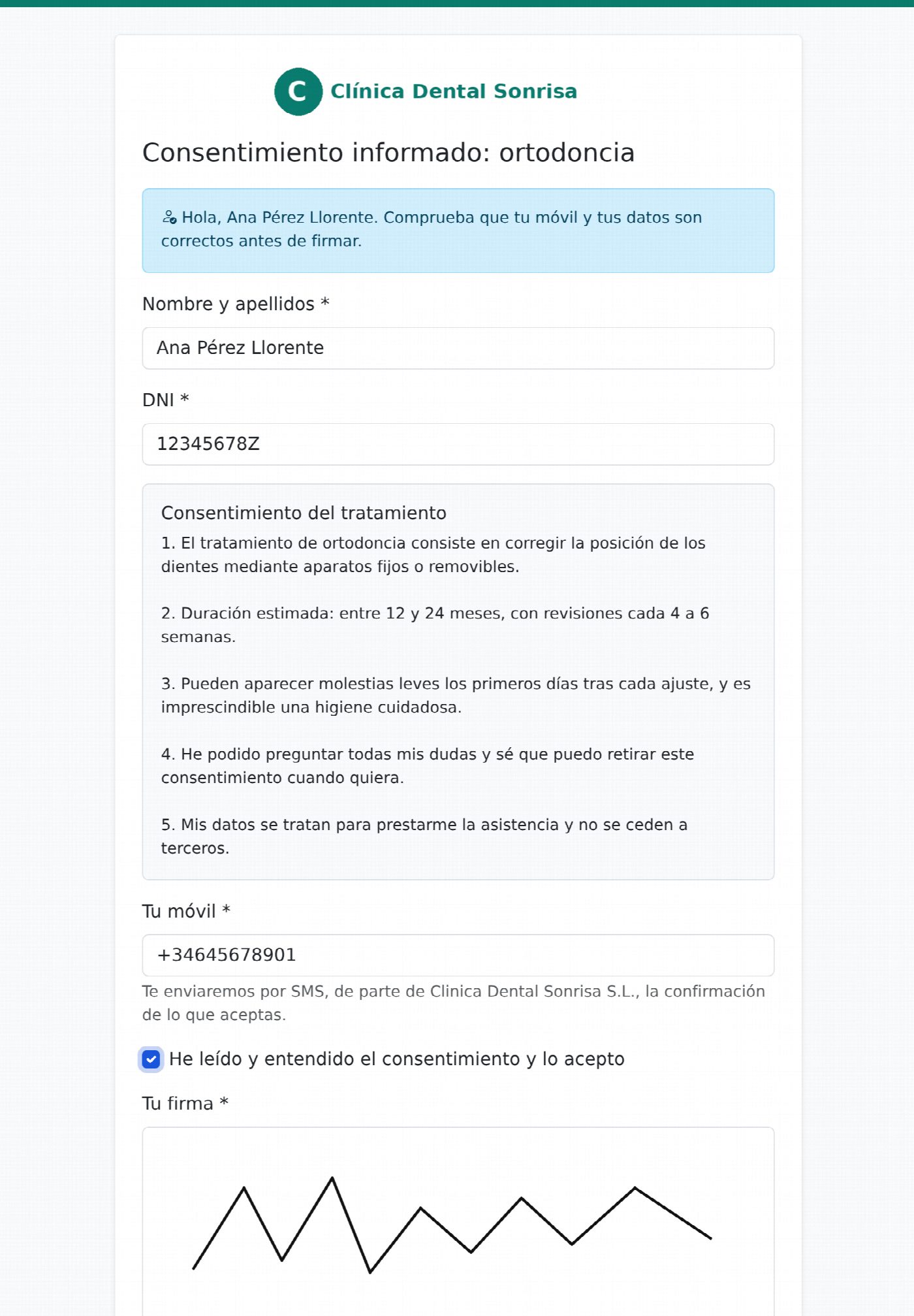
Their details are already filled in so they only need to check them. They read the text, tick the mandatory box and sign in the box. Without the tick and the signature, the button does not work.
If you configure it, they also receive a code by SMS on their phone, which proves the phone is theirs.
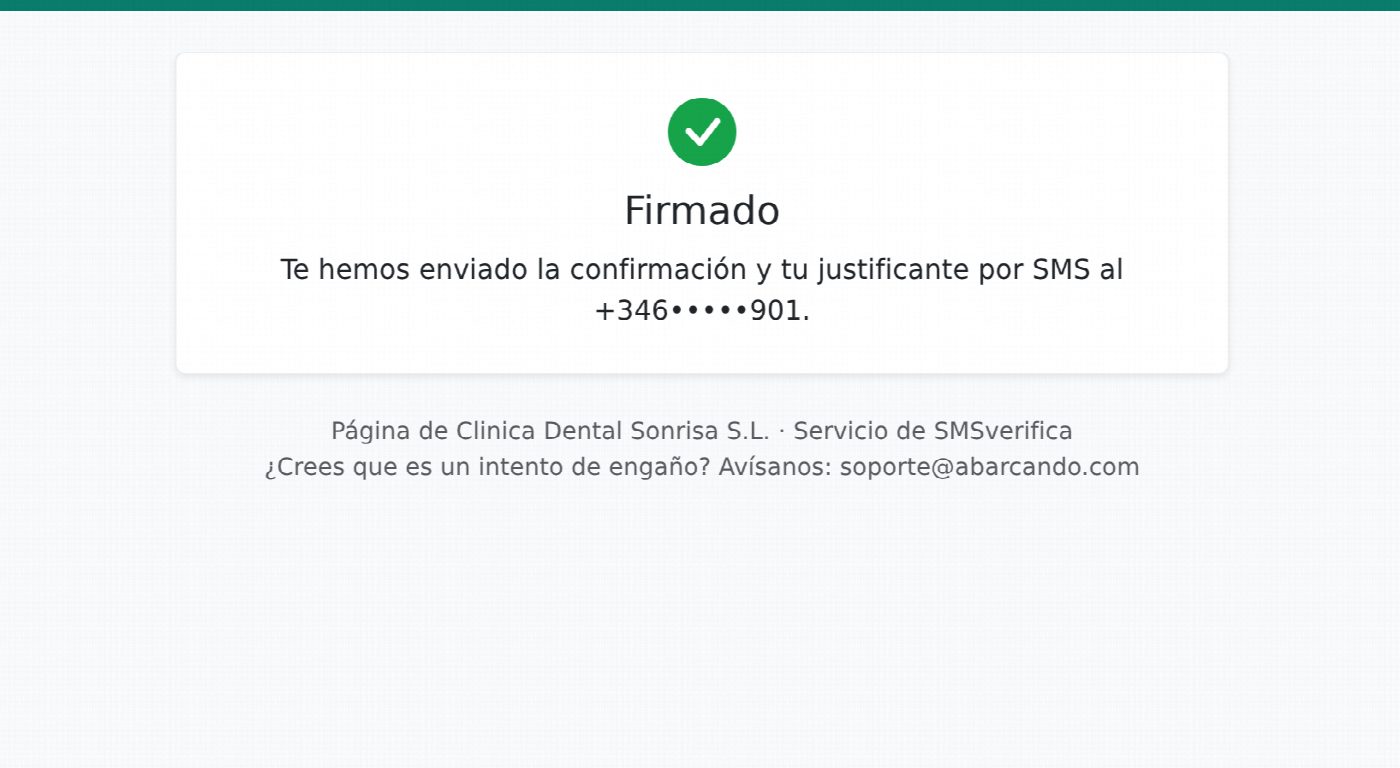
When they finish, the tablet just says “Signed”: no data, no downloads, no going back, and if nobody touches it, it returns to the start by itself. The next customer sees nothing of the previous one. If you want, the customer receives on their phone the SMS with the link to their receipt.
You send them the link by SMS and they sign from home, with the same process. As the link already reaches their phone, they do not need a code. It works for any acceptance: quotes, terms, authorisations, bookings.
For texts everyone accepts (the terms of your service, a policy), a fixed link you put on your website, in an email or on a QR code at the counter. Each person leaves their mobile number and their signature.
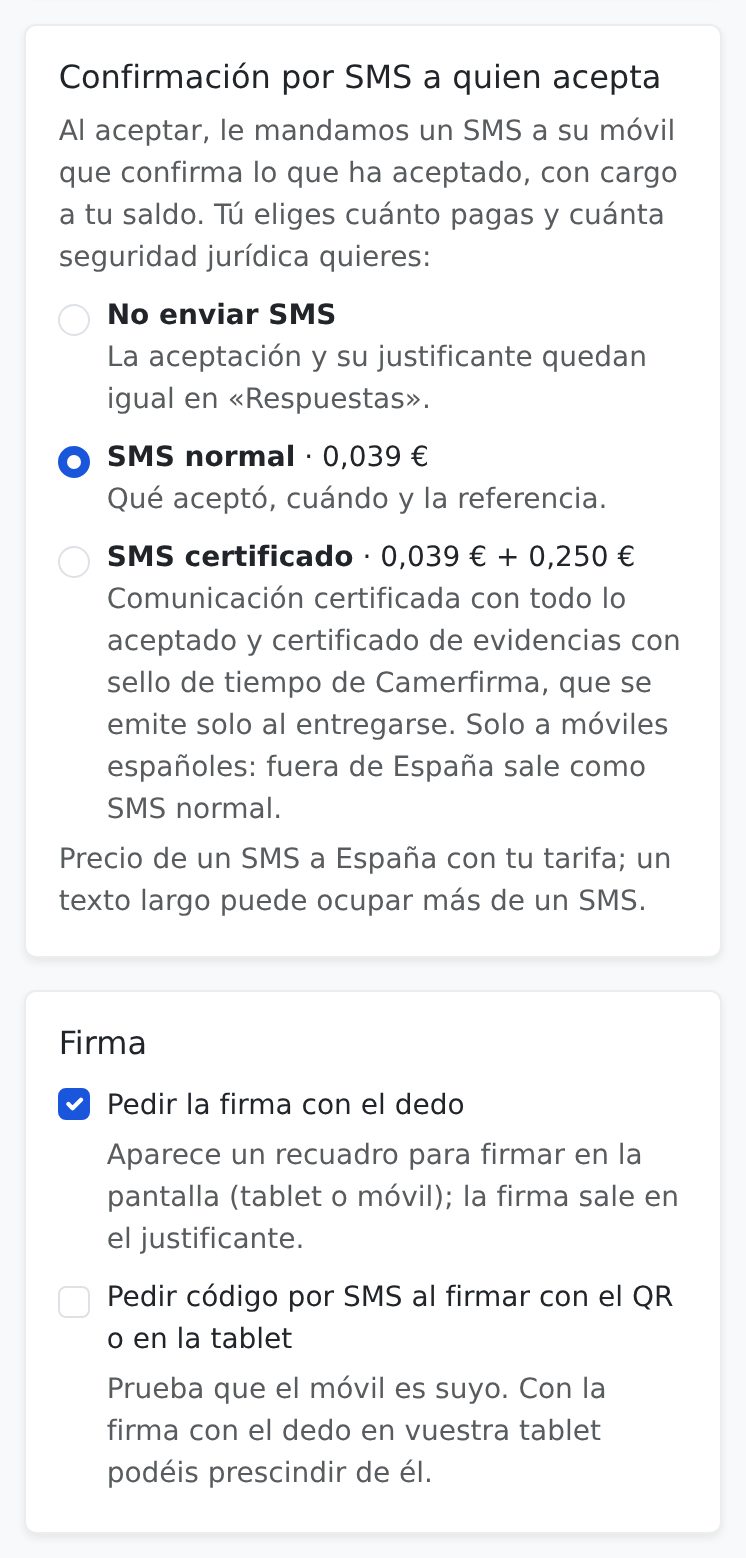
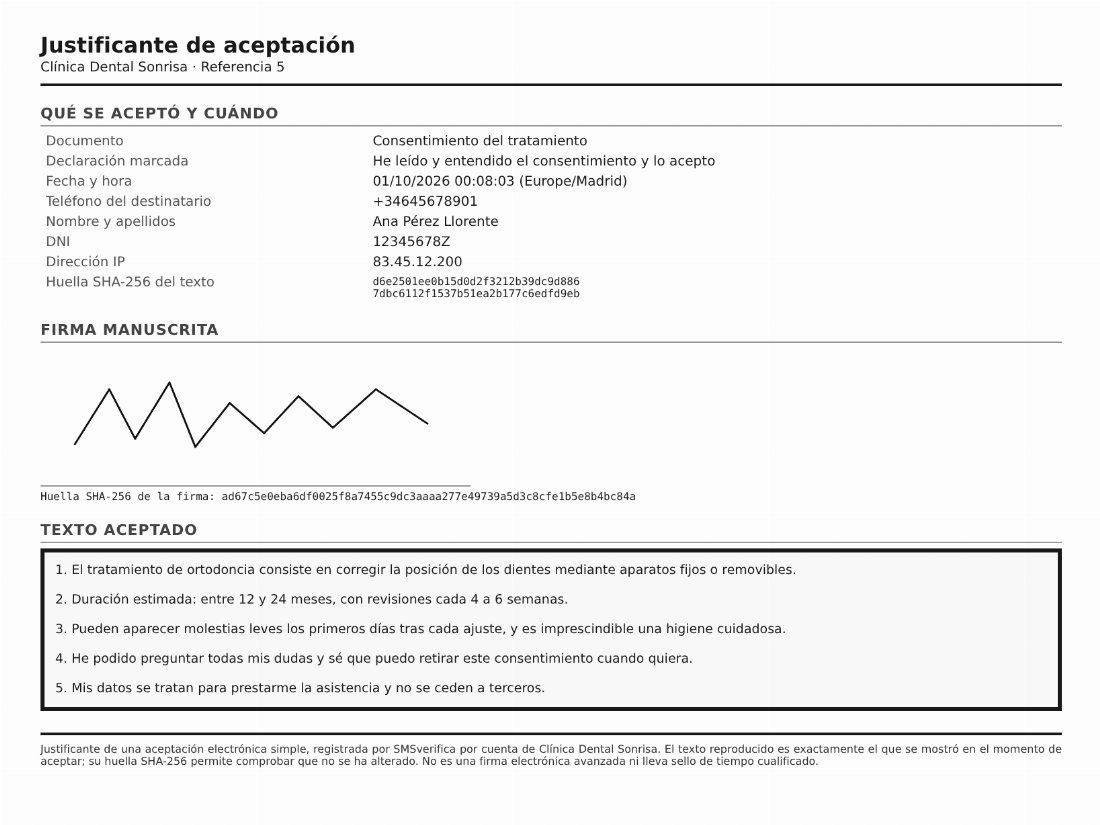
Every signature generates a PDF with the exact text that was accepted, the date and time, the details the customer checked, their IP address, their signature and the SHA-256 fingerprint of the text and of the signature, so you can prove that nothing has changed. If you edit your document tomorrow, what was signed before does not change.
It is a simple electronic acceptance, and the PDF itself says so. When you need more —a contract someone might dispute— you have certified messaging, with an evidence file and a qualified time stamp.
This is how we check it ourselves: you set up the page, prepare a signature for yourself and sign it with your own mobile. You see exactly what your customer will see and what you are left with.
Before anyone can sign, a person on our team has to approve your account: we usually do it the same day. Until then, in test mode, you prepare the page and see it in preview. Once it is approved, SMS go out for real and each signature and each SMS is charged to your balance.
Each consent form is a page, prepared once and used for every patient. This is how it is configured:
A tip for healthcare: the title of the terms travels in the SMS and can be seen on the lock screen. Do not let it name the treatment (“Informed consent”, not “Dental implant consent”).
In Signatures → New signature, reception enters the patient's mobile number and name (and, if they have them, their ID number and date of birth, so the patient only has to check them), chooses “Implant consent” and the paired tablet. The signature appears on the tablet by itself; the patient signs, and the tablet is left clean for the next one. If a patient wants to take it home, it is sent by SMS and they sign it from their mobile.
The same scheme works for any business: the text, the details requested and the options change. There are more than thirty use cases, each with its configuration: opticians, physiotherapy, gyms, academies, summer camps, garages, estate agents, rentals, law firms…
No fees and no lock-in: a prepaid balance that never expires (amounts excl. VAT).
Signing and acceptance with a receipt are not offered to mobile numbers in the USA or Canada.
Do you have management software for clinics or other businesses and want to offer this to your customers? See the partner programme.