SMSverifica help · section 7 of 18
7. Campaigns: the same message to hundreds or thousands
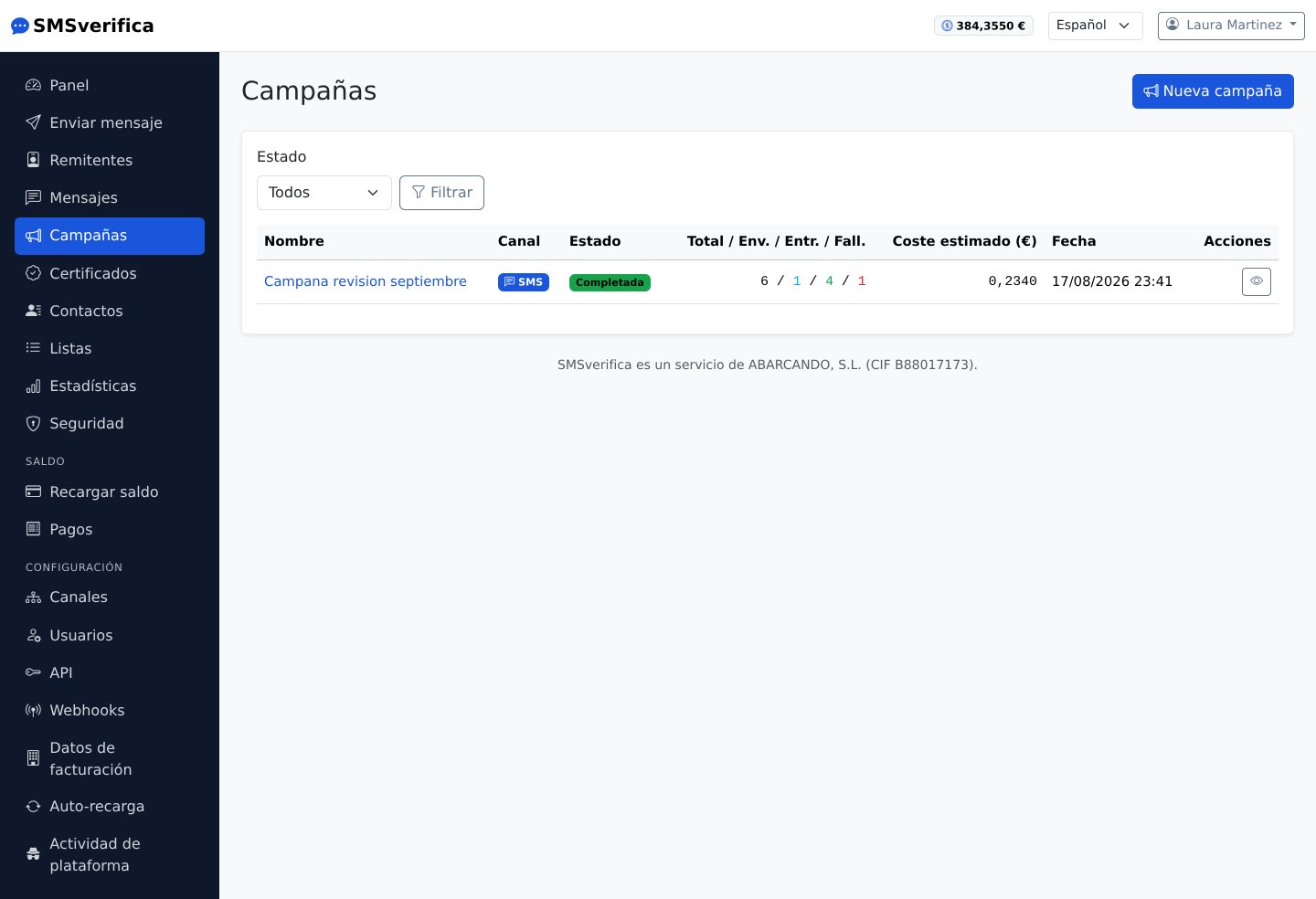
A campaign sends a message — which can be personalised — to an entire list, to a file uploaded on the spot, or to a manual selection.
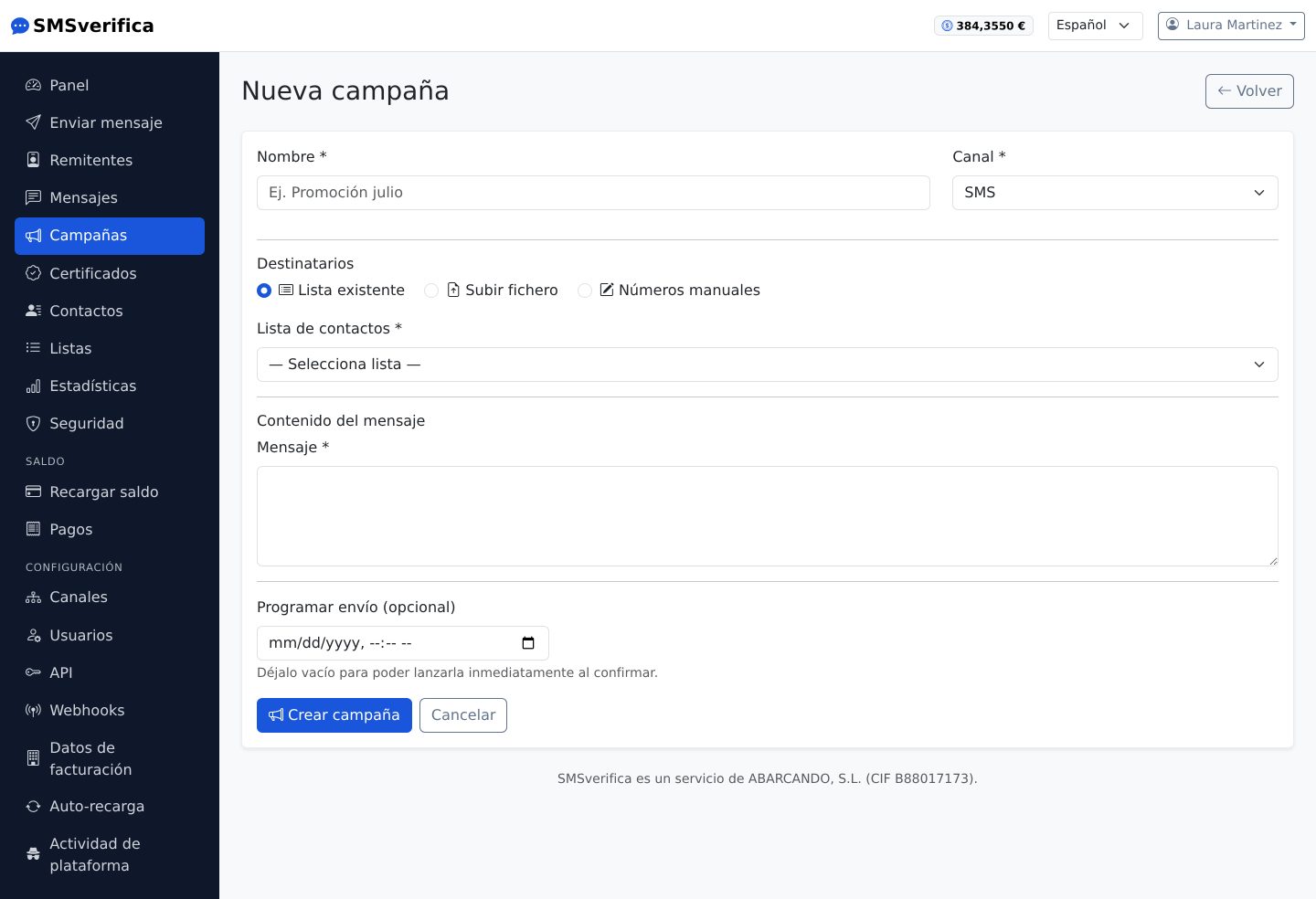
- Choose the channel, the source (list, file or manual) and write the
text. You can use personalised fields:
Hola {nombre}, toca revisión anual…{nombre}is the contact's name, and any column of your file is a field: “Fecha cita” is written{fecha_cita}(dates come out as03/10/2026). If a contact lacks a value, that part is left empty for them. - The platform calculates the cost estimate before you confirm: the price of each destination times the SMS parts of each recipient —with personalised fields, each one receives their own text and pays for their own—. Right there you see the real text of the first contacts and how many lack each field.
- Schedule the date and time if you do not want it to go out right away.
- Confirm. Progress is shown live: queued → sent → delivered, with failures counted separately and refunded where applicable.
Each recipient generates their own message in the history, with its own cost and its own receipt: the campaign is the folder, not a black box.
Who clicked
If the text carries a link (with Shorten campaign links ticked), each recipient gets their own, of the same length: neither the price nor the sending speed changes. So the campaign page tells you how many people clicked —not just how many clicks— and each message page shows whether that person opened the link and when. The previews that WhatsApp, iMessage or Telegram generate when a link arrives do not count as clicks.
Write again
Once the campaign has gone out, its page lets you write again to those who clicked, those who did not, or those it did not reach. A list is created with those people and a new campaign opens with the same text, for you to change; nothing is sent until you confirm it, and opted-out recipients will not get it.
Test send
Before confirming, on the campaign page you can send a test to your mobile: you get the text exactly as the first contact on the list will, with their data and links. It is charged as a normal message and does not count in the campaign.
Time window and speed
In Time window and speed you can limit sending to certain hours and days (for example, 9:00 to 21:00 Monday to Friday): outside the window, the campaign waits for the next opening by itself. And you can set a maximum number of messages per minute, so your switchboard or website is not overwhelmed if many people reply at once.
Reminders by date: appointments and birthdays
If your file has a column with a date —the appointment, the date of birth—, in
Send by a date of each contact you choose that column (fecha_cita), how
many days before and at what time. Each contact receives the message on
their day: with “appointment”, the date as is; with “anniversary”, its day
and month the next time it comes. Combine it with personalised fields:
Le recordamos su cita del {fecha_cita}.
Contacts without a date, or with a date already past, are neither sent anything nor charged: it is recorded with the reason. The campaign stays in progress until the last contact gets their message, and its page shows how many are still waiting for their day and when the next send is. The balance is checked on confirming for the whole list; if later it is not enough, those messages do not go out.
Pages: forms and documents from the SMS
In Pages you prepare a page with a title, text, images, buttons, PDF
documents and a form (text, email, phone, date, Spanish ID, drop-down,
checkboxes…), with your colour and your logo, and you preview it before using
it. When writing the message, choose the page and press Page: {PAGINA}
becomes a different link for each recipient.
So you know who opened it and who replied: replies come with the phone number it was sent to, you see them on the page and download them as CSV, and the campaign lets you write again to those who did not reply. A document can ask for “I have read and accept” and the date is recorded; if you need the acceptance to serve as evidence, use certified messaging (section 8).
For security, a form cannot ask for passwords, PINs or card details, and pages are only published once your account is approved. The PDFs and images you upload use your account's space (100 MB); you can see it in Files.
Each page is published for two years included. After that, keeping it costs a yearly fee based on its traffic: €0.002 per person who opened it in the last year, with a minimum of €5.00 a year, deducted from your balance. We email you 30 days before with the calculated amount; if you do not need it, untick “Renew automatically” and it will stop being published without deleting anything. If you have a lot of traffic, the price per visitor is negotiable.
Terms with a receipt. Add the Terms block with your text (the terms of a service, a consent form…): whoever reads it ticks “I have read and accept” and a PDF receipt is produced with the exact text accepted, the date and the form data. On the page you choose whether we email it to the person who accepts (it needs an “Email” question), to your address or to both; they can also download it on the spot, and you always have it under Responses. If you change the text later, earlier acceptances do not change. The link in each SMS is personal: once accepted, if the person opens it again they only see when they first opened it and when they accepted, and they cannot accept again.
The person who accepts also receives an SMS on their mobile confirming what they accepted, when, and the reference; if they came through the public link, the page asks for their mobile. It is charged to your balance and you choose the level for each page: standard SMS (default) or certified SMS, which sends everything accepted as a certified communication and produces the evidence certificate with a Camerfirma timestamp as soon as it is delivered. The certificate costs more and gives more legal certainty; it is only available for Spanish mobiles. The “I have read and understood” box is mandatory: without ticking it, nobody can accept. To share the page without sending an SMS —in an email, a WhatsApp message or a QR code at the counter— create its public link from the editor.
Signatures: your customer signs on the tablet or on their mobile
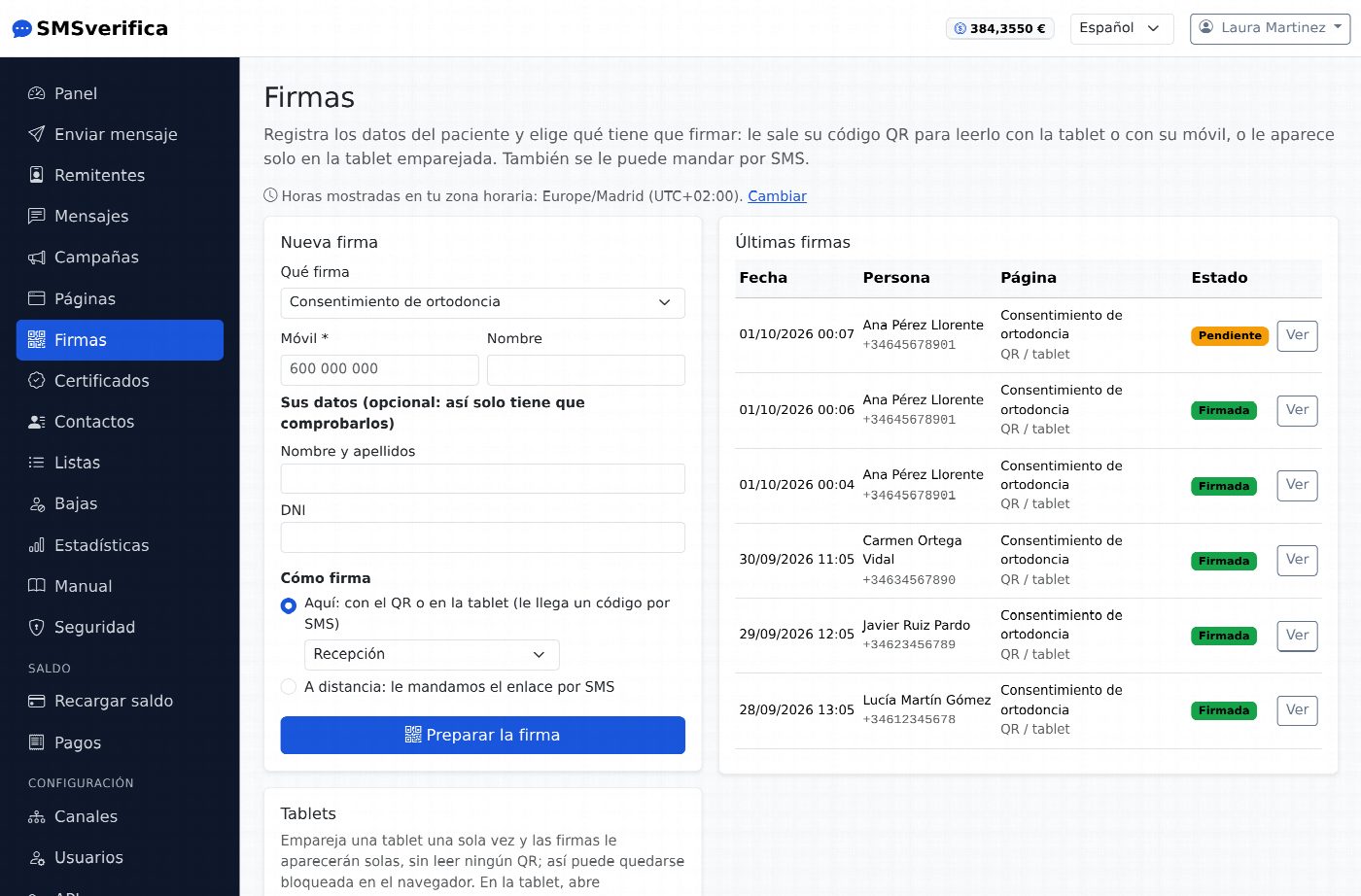
In Signatures you enter the person’s details (mobile, name and, if you wish, the page answers so they only have to check them) and choose what they have to sign: a page with terms or with a document. You get their QR code: the tablet in your premises or their own mobile scans it and opens their signing page, with their details already filled in. They check that the mobile and details are correct, read, tick the mandatory box and receive a code by SMS: entering it signs. When they finish, their mobile gets the confirmation SMS with the link to their receipt; nothing stays on the tablet, it cannot be downloaded or navigated back to, and if nobody touches it, it returns to the start on its own.
If you pair the tablet once (Signatures → Tablets), signatures appear on it on their own, without scanning any QR, and it can stay locked in the browser. You can also send them the link by SMS to sign from home: since the link already reaches their mobile, no code is needed. Each SMS (link, code and confirmation) is charged to your balance.
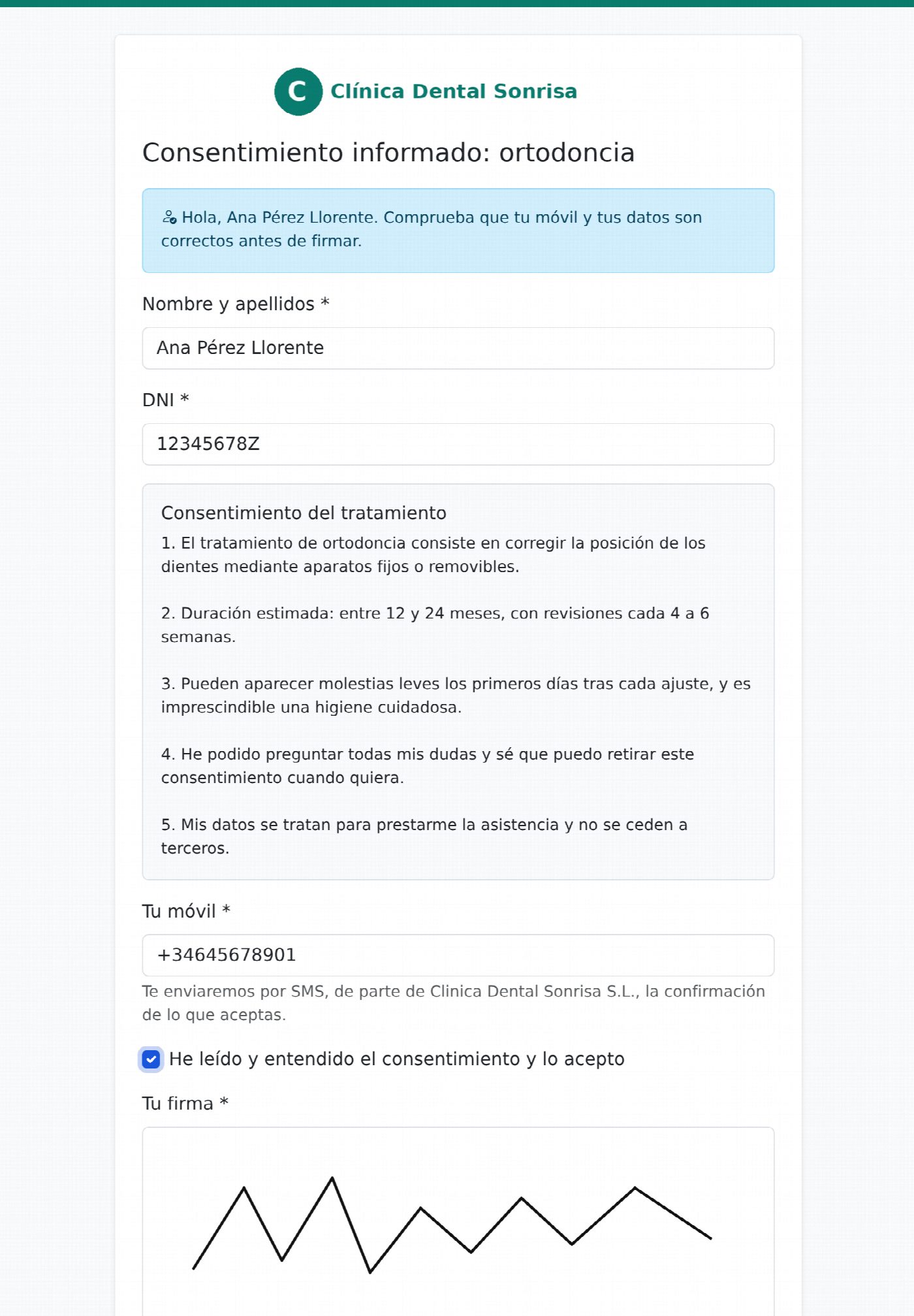
For each page you decide three things: whether they sign with the finger (a box to sign appears on the screen and the signature is shown on the receipt), whether signing with the QR or on the tablet needs the SMS code (with the finger signature on your own tablet you can do without it), and whether the confirmation SMS is sent at the end, which you can also turn off.
Price. Each signature or acceptance with a receipt costs €0.10 from your balance, whether it is done on the tablet, with the QR code or from the page link. The SMS (the link, the code and the confirmation) and the certificate are charged separately, each at its own rate. Nothing is charged in trial mode. If there is no balance, the page says so before the person fills anything in.
Opt-outs: people who do not want more marketing
Write {BAJA} in the text (or press Opt-out link) and it becomes a short
link, different for each recipient: whoever opens it stops receiving your
marketing messages with a single button, both in a single send and in a
campaign.
Campaigns are never sent to opted-out numbers, whether or not they carry the link: the contact shows as not sent, at no cost. The list is under Opt-outs in the menu: you can add by hand anyone who asks you by phone or in your shop, and only the account administrator can withdraw an opt-out —and should only do so if that person asks to receive your messages again—.